June 04, 2026
 8 min
8 min  4555 Views
Salesforce and Jira Integration: The Ultimate Guide for Sales & Engineering Teams


The business impact of connected workflows
- According to Nucleus Research, CRM integration can drive productivity gains across sales, service, and operations, with 20–30% growth in business.
- Nucleus Research also found that time savings from productivity gains and process efficiency accounted for 51% of total CRM ROI.
- According to McKinsey, companies that build strong sales operations, including process automation, can achieve one-time improvements of 20–30% in sales productivity.
- McKinsey also reports that high-performing sales representatives spend 20–25% more time with customers than lower-performing representatives.
Salesforce and Jira often support the same customer journey from different sides.
What lives in Salesforce:
- Leads and accounts
- Contacts
- Opportunities
- Cases
- Communication history
- Contract details
What lives in Jira:
- Issues and bugs
- Feature requests
- Tasks
- Sprint planning
- Backlog items
- Delivery progress
When these platforms don’t talk to each other, teams lose time on manual data entry, screenshots, and status meetings that shouldn’t be necessary. A support agent has no way to know a bug is already assigned to engineering. Sales feedback reaches product days late, stripped of the context that made it useful in the first place.
A well-planned integration connects customer-facing teams with technical teams, so each side works from the same information without leaving the tool they already use.
What Is Jira Salesforce Integration?
A Jira Salesforce integration connects Salesforce CRM with Jira so customer-facing and technical teams can work with the same information. Salesforce stores customer details and conversations, while Jira tracks the technical work behind each request.
What happens without it
Without an integration, teams often copy details by hand, search through chat threads for updates and create duplicate records across both systems. A support agent forgets an attachment, or a sales rep promises a delivery date without seeing the latest engineering status. These small gaps quickly lead to delays and confusion.
How it works in practice
In a typical setup, a support agent creates a case in Salesforce and the integration links it to a Jira issue for the technical team. Status, priority, comments and resolution then appear in Salesforce, giving customer-facing teams a clear view of progress.
One-way or two-way sync
The connection can move information in one direction or keep both systems updated at the same time. With one-way sync, Salesforce sends selected data to Jira. With two-way sync, changes in either system update the linked record. For example, when a Jira issue moves to «Done», the Salesforce case updates automatically.
What a real setup requires
A reliable setup depends on field mapping, sync rules, permissions, automation and monitoring that reflect the team’s actual workflow. Each part needs to support the process already in place instead of relying on a generic default.
Common Scenarios for Jira and Salesforce Integration
Salesforce and Jira integration is most useful when teams need a clearer handoff between customer conversations and technical work. Support teams use it to escalate product issues, while sales and customer success teams rely on it to share feedback and track open engineering tasks tied to an account. It also helps with everyday processes such as bug tracking, onboarding handoffs and follow-ups between departments.
Support Escalation From Service Cloud
Service Cloud is often the center of customer support operations. Agents manage cases, customer communication, SLAs, and escalation rules there. When a case requires engineering input, the agent can create Jira issue creation rules or link the case to an existing work item.
This workflow helps support agents in Salesforce stay informed without switching tools. They can see whether the issue is open, assigned, blocked, or resolved. If comments or attachments are synced, they can also share technical details with the customer more accurately.
For engineering, the benefit is context. Developers can receive the case summary, customer priority, affected product, support level, and reproduction steps directly in Jira.
Product Feedback and Feature Requests
Sales teams and customer success managers collect valuable product feedback during demos, renewals, onboarding, and account reviews. If that feedback remains scattered across CRM notes, it is hard for product managers to use it.
With a clear Salesforce and Jira workflow, feature requests can be converted into Jira work items. Sales Cloud can keep account context, revenue impact, and deal stage, while Jira can manage prioritization, backlog grooming, and delivery.
This is especially helpful when product teams need to understand how many customers requested a feature, which accounts are affected, and whether a request is linked to a renewal or expansion opportunity.
Customer Success and Account Visibility
Customer success teams need to know whether open technical issues are affecting key accounts. If Jira data is not visible in Salesforce, account managers may discover blockers too late.
By syncing statuses, priorities, and key updates, Salesforce can show a clearer account health picture. For example, a customer success manager can see that a high-value account has three open technical issues, one blocked sprint backlog item, and one resolved defect waiting for release.
This helps customer-facing teams prepare better updates and manage expectations more confidently.
Other Common Scenarios
The same connection supports a few other recurring workflows:
- Bug tracking. A bug reported by a customer, a support agent, or an implementation consultant can be linked directly to a Jira issue instead of tracked separately in each system. Before creating a new one, users can search for existing tickets to avoid duplicate bugs.
- Implementation and onboarding. Once a deal closes, opportunities or onboarding records can generate Jira tasks for the delivery team, so account managers and engineers are working from the same context instead of starting the handoff from scratch.
What Data Can Be Synced Between Salesforce and Jira?
The exact data depends on your workflow, but most companies sync a mix of customer, issue, status, and collaboration data. The goal is not to copy everything. The goal is to share the information that helps improve your team’s productivity and move work forward.
| Salesforce Data | Jira Data | Why It Matters |
|---|---|---|
| Cases | Issues or tickets | Connects customer problems with engineering work |
| Accounts | Projects or labels | Shows which customers are affected |
| Contacts | Reporters or watchers | Helps teams understand who reported the issue |
| Opportunities | Implementation tasks | Connects sales handoff with delivery work |
| Custom objects | Custom fields in Jira | Supports industry-specific or internal workflows |
| Case priority | Issue priority | Helps technical teams understand urgency |
| Case status | Issue status | Keeps support and delivery teams aligned |
| Attachments | Attachments | Shares screenshots, logs, files, and evidence |
| Comments | Comments | Keeps communication visible in both systems |
| Jira Issue Key | Salesforce field | Makes records easier to search and audit |
A company may need to map product name, contract type, SLA tier, affected environment, release version, implementation deadline, or customer segment. These fields help teams prioritize work based on business impact, not just technical severity.
Not sure which approach fits your setup?
See how Peeklogic-guided setup works or book a quick call to talk through your options.
Step-by-Step Guide to Planning the Integration
A successful integration starts with planning. The technical setup matters, but it should follow the business process, not the other way around.
Step 1: Define the Business Goal
Start with the reason for the integration. Do you want to speed up support escalation? Improve product feedback? Connect sales and development teams? Track implementation work? Reduce duplicate data?
A clear goal prevents the project from becoming too broad. It also helps you measure success after launch.
Step 2: Choose the Source of Truth
Decide which system owns each type of data. Salesforce may own customer account data, contact details, case priority, and support communication. Jira may own issue status, technical comments, development estimates, and sprint backlog placement.
If both systems can update the same field, define conflict rules. Otherwise, two-way sync can create confusion.
Step 3: Select Objects and Fields
Do not sync everything. Start with the records and fields that teams truly need. For example, you may begin with Salesforce cases, Jira issues, status, priority, comments, attachments, and Issue Key.
Later, you can expand to opportunities, custom objects, release information, or account-level reporting.
Step 4: Define Sync Rules
Sync rules describe when data should move. A case might create a Jira issue only when it reaches a certain priority. A Jira status might update Salesforce only when it changes to “Done” or “Blocked.” Comments may sync only if they are marked public.
Good rules prevent noise. Bad rules create too many records and make the workflow harder to manage.
Step 5: Test With Real Scenarios
Test with realistic scenarios: urgent support cases, duplicate bugs, missing required fields, permission errors, attachments, comments, and failed API responses. This catches problems before they reach real customers.
Step 6: Train Users and Monitor Results
Even the best integration needs user adoption. Support agents should know when to create a Jira ticket, when to link an existing one, and what information to include. Developers should know which Salesforce fields matter and where to send updates.
After launch, monitor errors, duplicate records, sync delays, and user feedback, and adjust the rules as the workflow evolves.
How Salesforce to Jira Integration Works Technically
A technical setup usually includes authentication, triggers, field mapping, API calls, sync rules, and error handling. The details depend on whether you use a marketplace app, middleware, or a custom API approach.
In a custom setup, Salesforce may send data to Jira when a case meets certain conditions. Jira may send updates back when an issue changes status, receives a comment, or moves to another workflow stage.
Authentication and Secure Access
Salesforce and Jira need a secure way to communicate. In Salesforce, Named Credentials can store endpoint and authentication details for external calls. This is safer and easier to manage than hardcoding credentials inside Apex.
For Jira Cloud, authentication often uses API tokens or OAuth, depending on the architecture. Permissions must be carefully planned so the integration can access the right projects, issue types, fields, and comments without exposing unnecessary data.
Field Mapping and Data Transformation
Field mapping defines how data moves between the systems. For example, a Salesforce case subject may become the Jira issue summary. Case description may become the issue description. Case priority may be mapped to Jira priority. Account name may become a label, custom field, or linked reference.
Data transformation may also be needed. A Salesforce picklist value may not match a Jira field value exactly. A high-priority case in Salesforce may need to become a blocker or critical issue in Jira. These rules should be defined before launch.
Webhooks and Real-Time Updates
Webhooks allow one system to notify another when something changes. For example, Jira can send an event when an issue is updated, assigned, commented on, or resolved. Salesforce can then process the update and reflect the new status on the related record.
Real-time sync is useful when teams need fast updates. However, not every field needs immediate synchronization. Some data can be updated on a schedule, while urgent status changes can be sent immediately.
REST API Callouts and JSON Payloads
In custom development, Salesforce can use REST API callouts to create, update, or fetch Jira issues. An Apex Class can prepare the JSON payload, send the request, process the response, and store the returned Issue Key.
A simple Jira issue creation payload may include project key, summary, description, issue type, priority, and custom fields. The Salesforce side should also capture response errors so admins can fix failed sync attempts.
Jira Cloud, Jira Server, and API Differences
Many teams use Jira Cloud, but some companies still work with Jira Server or Data Center environments. The integration design may differ depending on hosting, authentication, API version, firewall settings, and access controls.
Before building a custom solution, confirm which Jira environment your company uses. API endpoints, authentication methods, and security requirements may not be identical across versions.
Common Challenges and How to Avoid Them
Salesforce and Jira can support useful workflows, but the connection becomes difficult to manage when teams skip the planning stage. Most issues fall into three areas.
Process mismatch
Different teams often use different labels for the same thing. Salesforce might use «High, Medium, Low», while Jira uses «Blocker, Critical, Major, Minor». Statuses can create the same confusion: one team marks work as «Closed», while another uses «Done», «Released» or «Verified».
The best time to agree on how these values match is before launch. Waiting until records start syncing usually leads to missing fields, incorrect updates and extra cleanup.
Duplicate records
Duplicate issues appear when users can create Jira tickets from several places without checking whether the same problem has already been reported. Engineering then receives multiple requests for one bug or customer issue.
Adding a search step before ticket creation helps catch existing records and keeps related updates in one place.
Security exposure
Salesforce can contain sensitive customer details, contract terms and pricing information. Jira often includes internal technical notes that should not be visible to every user.
Permissions and field visibility should limit what the integration shares. Each team gets the context it needs without gaining access to unrelated or sensitive information.
The first version of the integration should stay focused on these three areas. More workflows can be added once teams understand the process and feel comfortable using it.
When to Choose Custom Integration
A pre-built integration may be enough for standard workflows. Custom Jira Salesforce integration is often the better option when your business process is complex.
Choose custom development when you have:
- Custom Salesforce objects that do not fit a standard app.
- Multiple Jira projects with different workflows.
- Complex approval rules before ticket creation.
- Strict security or compliance requirements.
- Advanced reporting needs across customer and engineering data.
- A need to transform data before it is pushed to Salesforce or Jira.
- Multiple Salesforce orgs or a more complex enterprise architecture.
- Requirements that standard marketplace apps cannot support.
Every item on that list adds hours. The Salesforce-Jira integration cost calculator converts a feature list like this one into an estimate, so the scoping conversation starts with a number instead of a guess.
Custom development gives more control, but it should be designed carefully. The goal is not to build complexity for its own sake. The goal is to support the workflow that actually drives customer and delivery outcomes.
Connecting Jira to Salesforce With Peeklogic
Peeklogic connects Jira and Salesforce around the way work actually moves between sales, support, product and engineering. The goal is not simply to pass data between two systems, but to keep customer requests connected to the technical work behind them.
Peeklogic Connector can:
- Create or link Jira issues from Salesforce records
- Search for existing Jira tickets before creating duplicates
- Sync comments, attachments, statuses, and priorities
- Map Salesforce fields to Jira fields
- Support Sales Cloud and Service Cloud workflows
- Connect a single Salesforce instance or more complex, multi-org environments
Peeklogic Connector comes with real-time two-way sync, custom field mapping and built-in support for comments and attachments. It also works with Jira Service Management, supports multiple Jira instances and offers a no-code setup for standard workflows. The Peeklogic Jira Connector page includes a full feature overview and setup guide.
Some companies need more than a ready-made connector. In those cases, Peeklogic also provides custom Salesforce development, including Apex automation, custom object mapping, API callouts, workflow design, permission setup and reporting.
Want to see the connector in action?
Book a demo with Peeklogic to discuss your Salesforce and Jira workflow and see how the connector can support your team.
Teams Who Trust Connected Workflows
Companies choose Salesforce and Jira because both tools are strong in their own areas. Salesforce helps manage customer relationships. Jira helps manage technical execution. The value grows when both systems work together.
A connected process helps sales and development teams communicate better, helps support teams provide faster answers, and helps managers see how customer requests move through delivery.
Peeklogic has helped teams from companies such as Chorus One, Daimler Truck North America, Dayforce, GoDaddy, OneTrust, Snap Finance, and ECI connect business and technical workflows with Salesforce and Jira integrations.
For Peeklogic clients, this often means fewer manual updates, clearer ownership, and more reliable reporting across customer-facing and technical work.
How Peeklogic Can Help
Peeklogic is a Salesforce development company that helps businesses design, build, and optimize Salesforce solutions. For Jira-related projects, Peeklogic can help with both connector-based setup and custom development.
This may include integration strategy, Salesforce object planning, Jira workflow analysis, field mapping, Apex development, API access, testing, user training, and long-term support. The team can also help decide whether a marketplace app, iPaaS platform, or custom API architecture is the right choice.
If your current process depends on manual updates, duplicate records, or disconnected teams, the issue is not just technical. It is a workflow problem. Peeklogic can help turn that workflow into a cleaner, automated process.
Connect Jira and Salesforce in Minutes
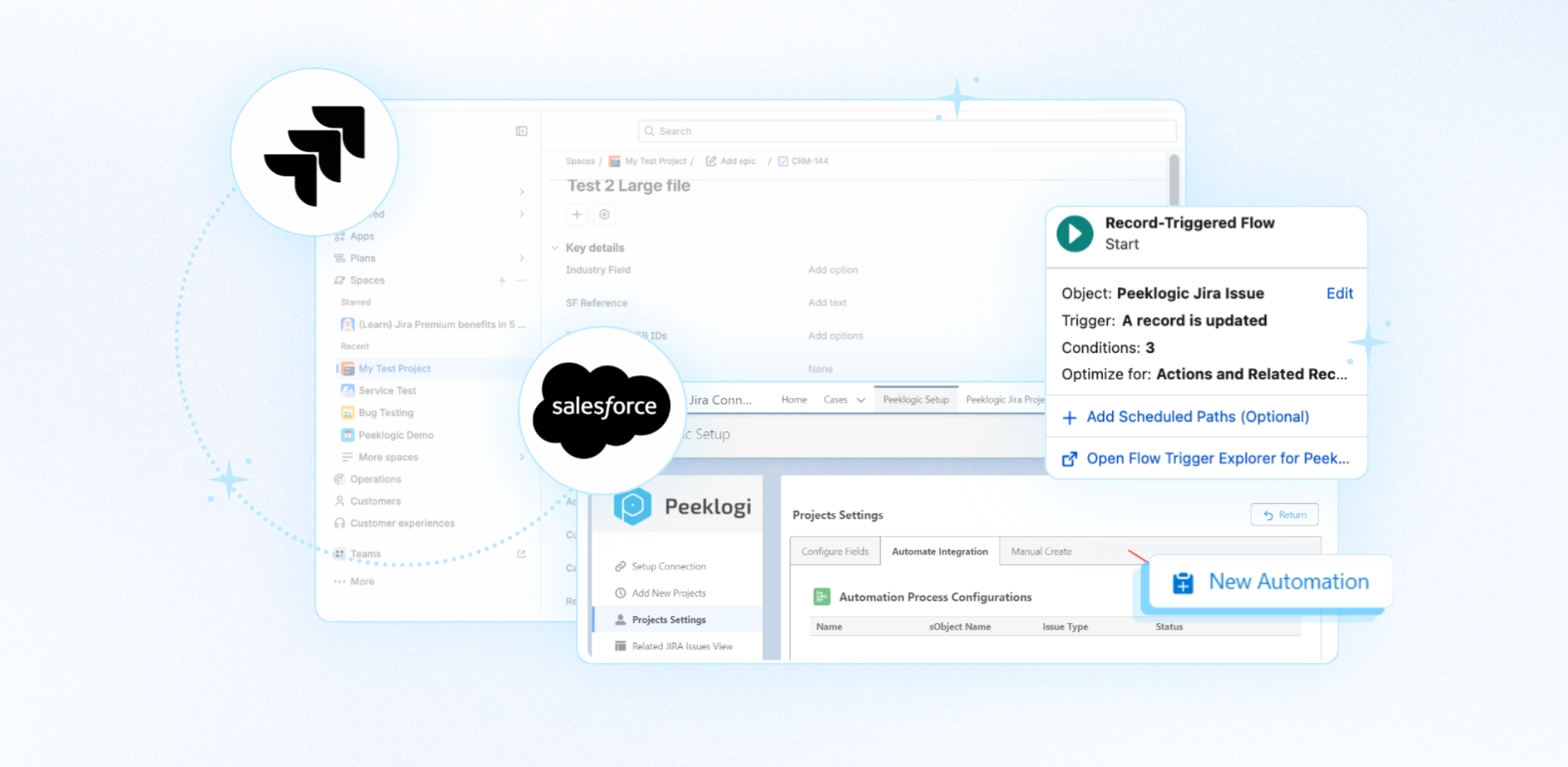
Use Jira Connector for Salesforce by Peeklogic PRO to connect Salesforce and Jira in minutes. Create, link, search, and sync Jira issues from Salesforce with a ready-made AppExchange solution.
When Peeklogic Is a Good Fit
Peeklogic is a good fit when your company needs practical Salesforce expertise, not just an app installation. Many teams start with a simple requirement such as “sync Jira issues with Salesforce,” but later discover that they also need better field mapping, permissions, reporting, automation, and error handling.
We can help shape the integration around the way the teams already work. That includes choosing which Salesforce records connect to Jira, deciding where new requests should go, setting priority rules and defining which Jira updates appear back in Salesforce.
The work can also cover the choice between a marketplace app, an iPaaS platform or a custom API build, along with testing, team training and support after launch.
Teams Who Trust Connected Workflows
Peeklogic has worked with teams at Chorus One, Daimler Truck North America, Dayforce, GoDaddy, OneTrust, Snap Finance and ECI to connect Salesforce and Jira. These projects often help reduce manual updates, make ownership clearer and give customer-facing and technical teams more reliable reporting.
Key Takeaways
Jira and Salesforce work best when the connection follows the way teams already handle customer requests and technical work. Simply installing an app is rarely enough to keep both systems useful over time.
The right setup depends on the company’s needs. Marketplace apps offer the fastest way to get started. Middleware suits businesses that already manage several connected systems. A custom REST API provides more control when workflows, permissions or data rules are more complex. Peeklogic can help compare these options and build a setup that fits the existing process.
The real goal is not just to move data between two platforms. It is to give sales, support and engineering a shared view of the customer and the work tied to each request.
Frequently Asked Questions
A Salesforce and Jira integration connects the two platforms so they can share information automatically. Instead of copying details between systems, teams can link a Salesforce case to a Jira issue and see updates from either side in both places.
Yes. Rules can automatically create a linked Jira issue when a Salesforce case meets certain conditions, such as reaching a set priority or being assigned to a specific product area. No one needs to open Jira and create the ticket by hand.
Both are supported, but the setup differs. Jira Cloud usually relies on API tokens or OAuth for authentication, while Jira Server and Data Center often require a different configuration. Before choosing an integration method, confirm which Jira version the company uses.
Either option can work, depending on how complex the process is. A marketplace app is usually faster to launch and easier to maintain. A custom REST API integration makes more sense when the setup includes custom objects, strict security rules or several Jira projects with different workflows. It gives the team more control, but it also takes longer to build and requires more ongoing maintenance.
Yes, as long as two-way sync is enabled. When someone changes a status, adds a comment or resolves an issue in Jira, the linked Salesforce case updates automatically. No one has to open Jira, check what changed and copy the update over by hand.

Accomplished Salesforce professional with a decade of experience in designing, developing, and managing robust integrations between Salesforce and enterprise systems, ensuring seamless data flow, operational efficiency, and enhanced business capabilities. Skilled in bridging complex technical requirements with practical business solutions to deliver secure, scalable, and high-performing integration architectures.
Contact us today!