December 29, 2025
 716 Views
How to Sync Attachments and Notes between Azure DevOps and Salesforce


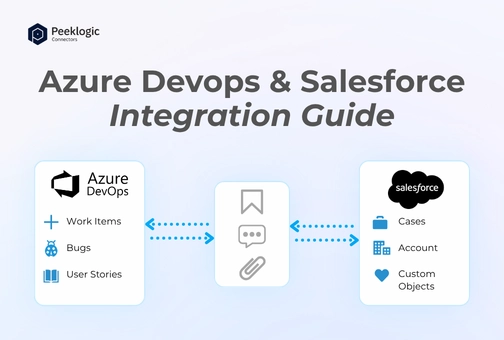
Connecting Salesforce and Azure DevOps helps many businesses bring together their customer-facing teams and their development workflows. Salesforce is a top CRM that helps you manage accounts, opportunities, and support cases. Azure DevOps helps software teams plan, track, and control their code. Syncing data between these systems makes it easier for both teams to work together, cuts down on manual work, and makes sure they all see the same information. When you connect Azure DevOps and Salesforce, any files or comments you add in one tool are automatically available in the other. This keeps the context across tools without having to copy and paste.
According to research in the field, businesses that combine their development and CRM platforms improve alignment between departments and often make better products with fewer delays. Integrations that keep data in sync across systems can help teams see what’s going on and cut down on work that doesn’t need to be done. According to Gartner, more and more businesses are using integration platforms to link their business and DevOps systems. Seamless data synchronization is still a top priority for digital transformation projects.
In this article, we’ll talk about how to sync notes and attachments between Azure DevOps and Salesforce, the main benefits of doing so, common problems, and best practices. Next, we’ll talk about integration options and why using a connector like the Peeklogic Connector can speed up this process.
Why Syncing Attachments and Notes Matters
Salesforce is often the place where customer problems, case notes, and other files start. Developers who use Azure DevOps have to manually link to information from Salesforce or ask the support team to add attachments and notes to work items again if there is no integration. This repetition takes up time and can cause problems.
Automatically syncing attachments and notes between Azure DevOps and Salesforce makes sure that all the relevant information goes with issues, tasks, or cases as they move between customer support and engineering teams. This makes it easier for people to work together, lowers the chance of making mistakes, and makes sure that everyone has the most complete information possible.
A case comment or file that is attached to a Salesforce case can give important background information about a problem, a customer request, or a history of support. Making this available in Azure DevOps work items helps developers understand problems better and cuts down on the need for back-and-forth clarification.
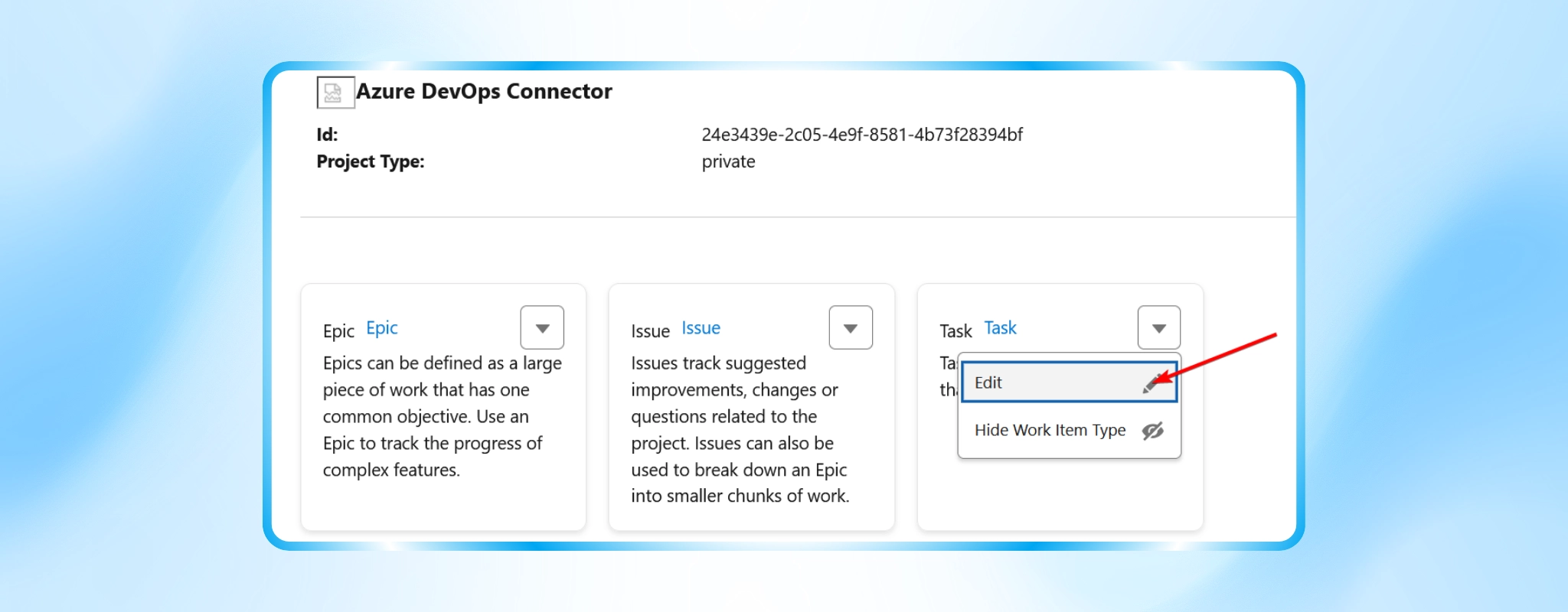
What Do Attachments and Notes Include?
When we talk about attachments and notes in this context, we mean:
- Files and documents attached to items in Salesforce (e.g., contracts, screenshots, specs).
- Notes or comments that explain context, history, or troubleshooting steps.
- DevOps comments on work items in Azure DevOps that detail development progress, bug reproduction steps, or test results.
- Linked files such as logs or test reports stored with DevOps work items.
When these elements are synchronized across platforms, both business and engineering teams have access to the same reference material.
Typical Scenarios Where Syncing Helps
Here are some examples from real life of how syncing notes and attachments between Azure DevOps and Salesforce can be helpful:
- Raising a Support Case. A customer service rep adds screenshots and notes to a Salesforce case. These attachments and notes will automatically go with the ticket when it becomes a DevOps work item. Developers can see the whole picture without having to ask for more information.
- Reporting and Clearing Up Bugs. People who work on bugs in Azure DevOps add comments and logs to the work item. The support team can update the customer without having to switch tools because those comments sync back to Salesforce.
- Requests for features and documentation. People who work for the business attach requirement documents to Salesforce opportunities. These are automatically linked in Azure DevOps work items that are made for feature development. This makes it easier for developers to find requirements without having to search through files.
These situations cut down on duplication, speed up response times, and make it easier for teams to see what’s going on with each other.
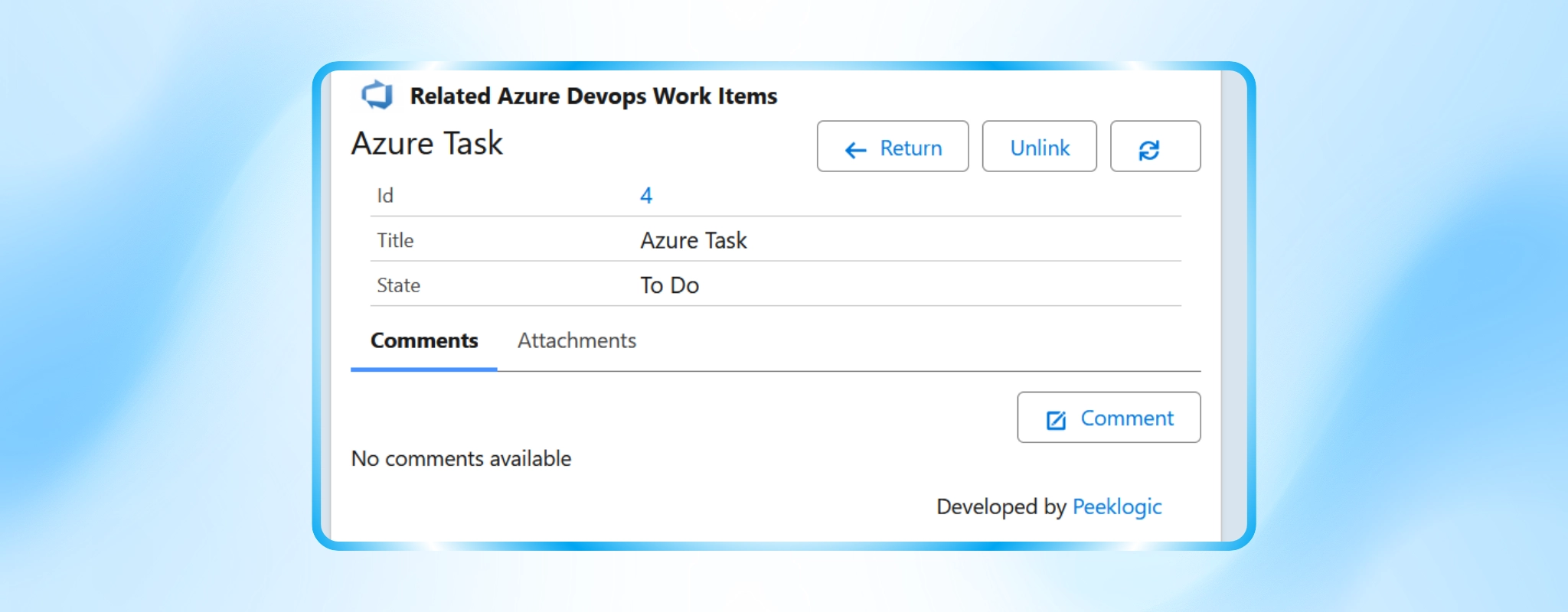
How Automatic Sync Works: A Brief Overview
An integration solution must be able to sync attachments and notes between Azure DevOps and Salesforce.
- Listen for things that happen in both systems, like when a new note or comment is added, a file is attached, or a work item is updated.
- Map records correctly by connecting sales records (like case, account, and opportunity) to DevOps work items.
- Transfer file data safely and make sure that attachments show up on both platforms.
- Keep the formatting of the author, date, and content when you sync text notes and comments.
- Take care of problems and conflicts, like network problems or permission issues.
Integration platforms use APIs from Salesforce and Azure DevOps to read, change, and write data between systems. This process needs to follow rules about who can access data and how it can be used, especially when it comes to attachments or private comments.
Problems that often come up when syncing notes and attachments
Even with a good plan for integration, there are still some problems that come up in practice:
- Different ways of modeling data. Salesforce and Azure DevOps save notes, comments, and attachments in different ways. It takes careful planning to map these fields correctly.
- Transfer of binary files. Moving files between systems can be harder than just moving text fields. The integration needs to be able to handle file encoding, size limits, and metadata correctly.
- Aligning permission and security. In Salesforce and Azure DevOps, users may have different levels of access. The integration should make sure that only users who are allowed to see the synced content can do so.
- Resolving conflicts. Before the next sync, if a note or attachment is changed in both systems, the integration has to choose which version to use or how to combine the changes.
- Worries about performance. If not handled properly, large numbers of attachments or frequent note updates can put a strain on APIs and slow down sync performance.
By dealing with these problems up front and making a good integration, you can make sure that the sync works and is easy to keep up.
Best Ways to Keep Notes and Attachments in Sync
When you set up automatic syncing between Azure DevOps and Salesforce:
- Set up clear rules for how records, comments, and attachments should be linked.
- To keep the context, add metadata like the author, timestamp, and source system.
- Plan for how to handle errors, like trying again if something goes wrong or keeping logs for auditing.
- Check the API’s limits and performance, especially if you expect to work with big files or sync often.
- Work with security teams to make sure that access controls are in line with internal policies.
These practices make things more reliable and cut down on surprises in daily operations.
What is the best way to integrate Azure DevOps and Salesforce?
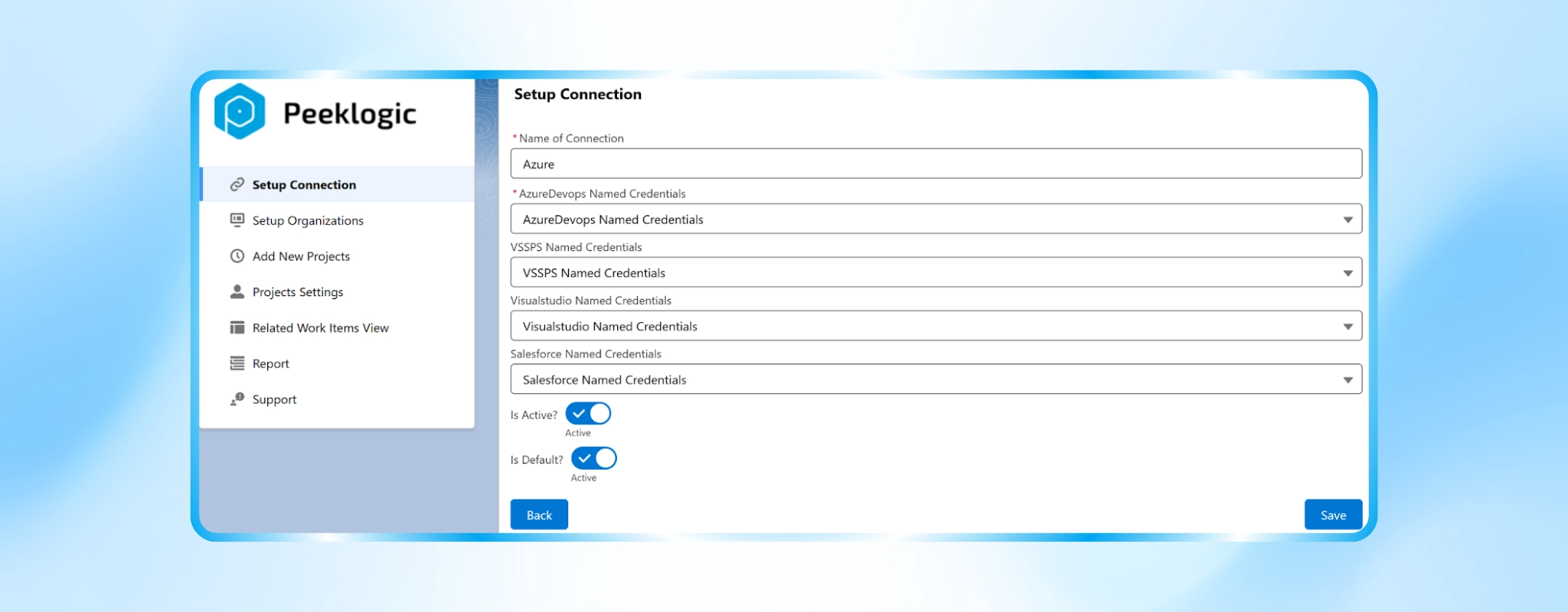
Rather than piecing together multiple tools or building custom solutions from scratch, an integration connector designed specifically for Salesforce and Azure DevOps can handle attachments, notes, work items, and field mappings consistently. The Peeklogic Connector for Salesforce and Azure DevOps provides bi-directional sync of attachments and notes, along with other key records, keeping both systems aligned with minimal configuration. This approach simplifies setup while preserving data integrity and context.
Conclusion
Syncing attachments and notes between Azure DevOps and Salesforce helps maintain context across tools, supports better collaboration, and reduces manual work for teams that span development and customer-facing roles. By understanding requirements, choosing the right sync approach, and planning for common challenges such as data mapping and security, organizations can build an integration that enhances visibility and productivity.
If you’re exploring integration options for Salesforce and Azure DevOps, learn more in our related article. Want to see how this works in practice? The Peeklogic Connector is a purpose-built solution to integrate Salesforce with Azure DevOps, including syncing attachments and notes automatically — helping teams stay aligned and work more efficiently.


Salesforce Integration & Implementation | AppExchange and Custom Development | Data Migration
Contact us today!