


Access Configuration
Access Configuration allows you to control which Jira projects, issue types, and fields are available to specific Salesforce Profiles or Permission Sets — both at the object level (for example, Case) and, if needed, for particular Record Types. This means that different groups of users can see tailored options when creating Jira issues, based on their access.
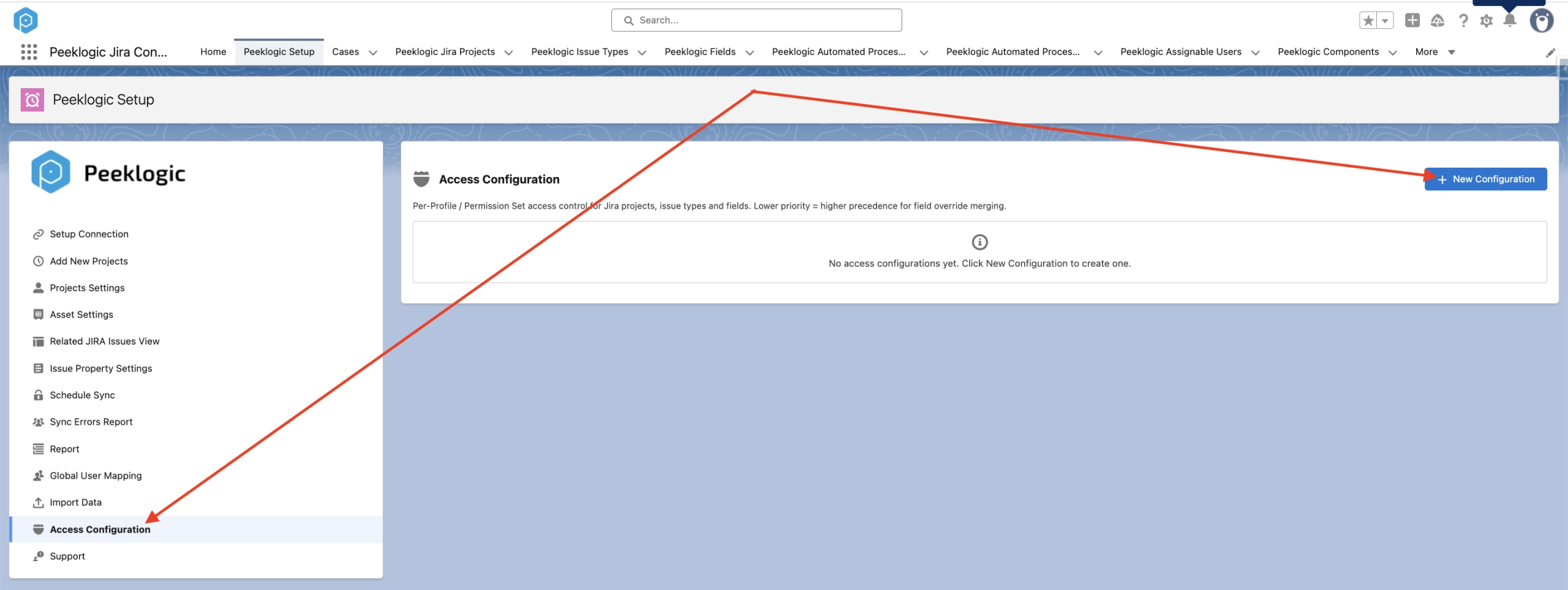
To enable this feature, please select the Enable Access Configuration checkbox in Jira Admin Settings under Custom Settings. If the feature is disabled, these rules will not be applied, and the connector will continue to operate as usual.
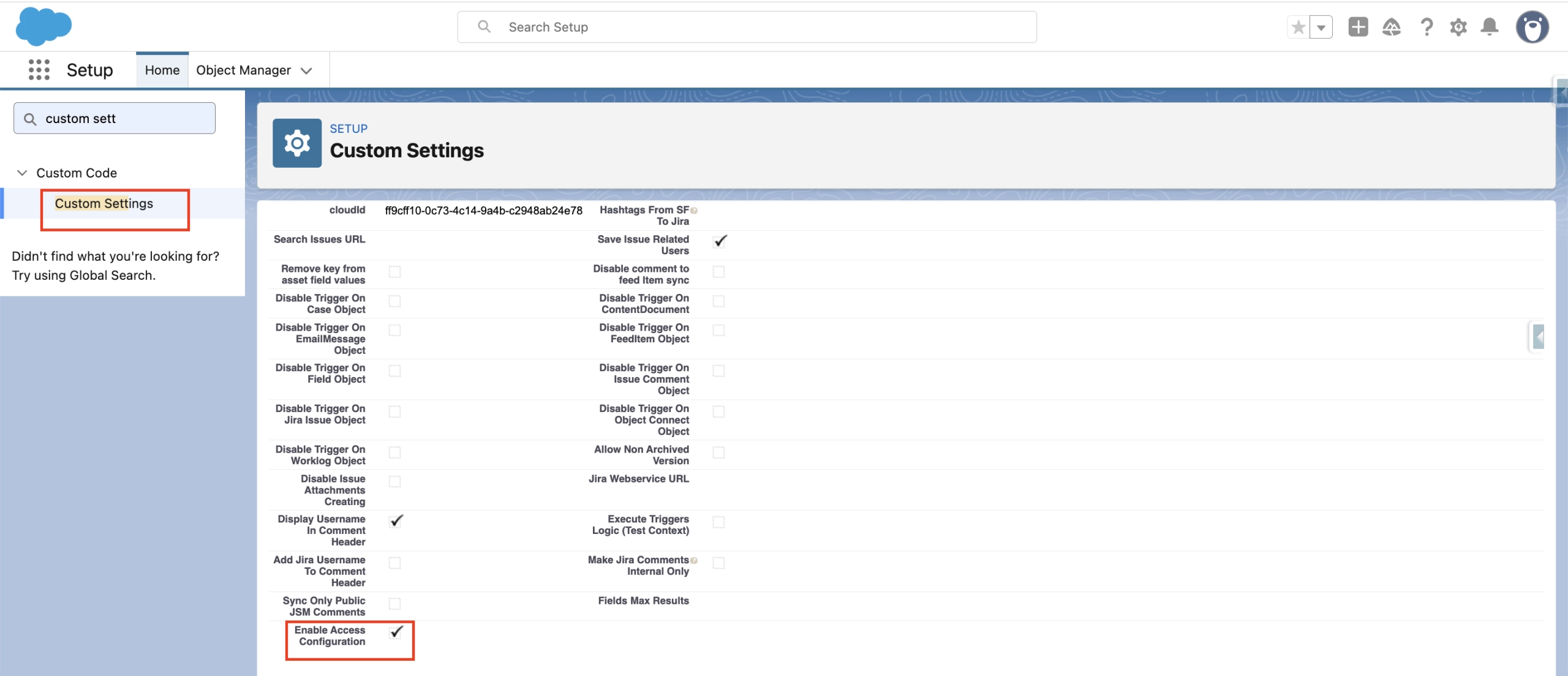
Scope Tab
This tab defines which users the rule applies to and where it is enforced.
- Configuration Name — the name of the rule (Used to easily identify the item in the list.).
- Profile / Permission Set — defines who the rule applies to. At least one of these must be selected.
- Salesforce Object — specifies the object (for example, Case) where the rule is applied. This field is required.
- Record Type — optional. Leave as Any if you would like the rule to apply to all record types.
- Priority — a value between 0 and 999. A lower number indicates a higher priority when multiple rules apply to the same user.
- Active — an on/off toggle. Inactive rules are ignored.
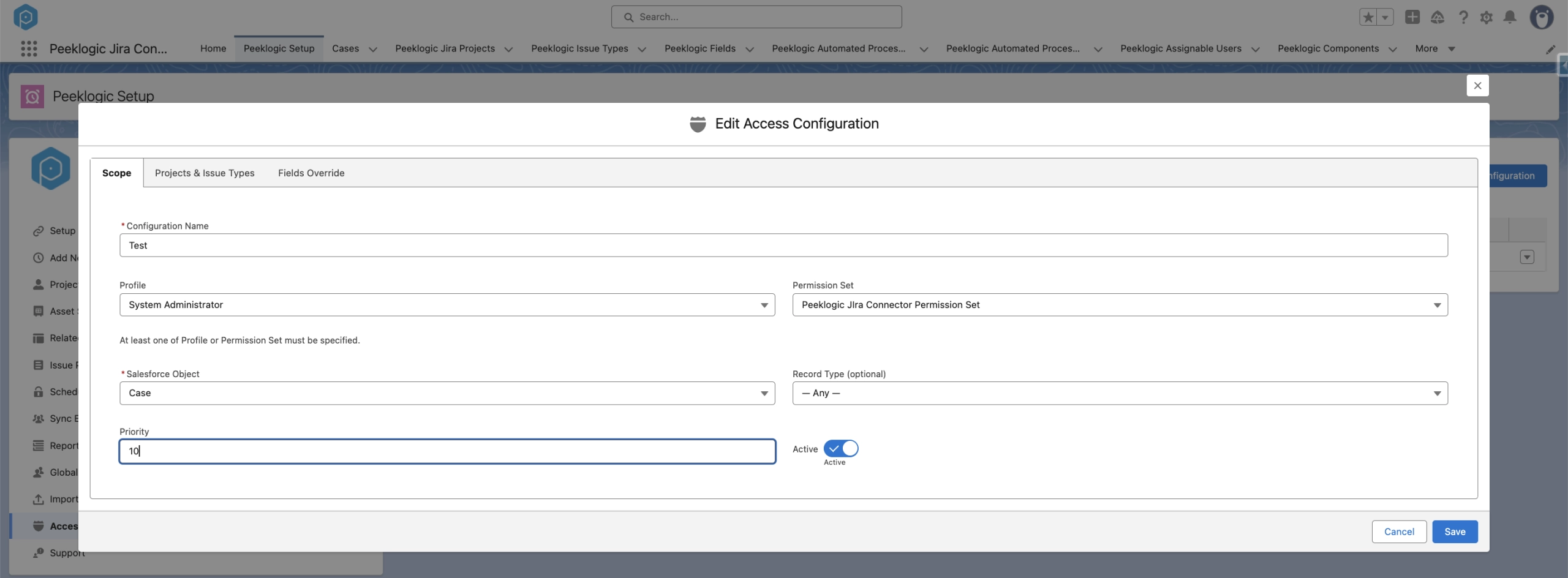
Projects & Issue Types Tab
- Projects — select the Jira projects that should be visible to the user for whom the rule is applied.
- Issue Types — a multi-select field that allows you to define which issue types will be available to this user.
- If a project is deselected, its associated issue types will be automatically removed from the selection.
Projects & Issue Types Tab
For each selected issue type, a dedicated section is provided with the list of available Jira fields.
- Enabled — the field will be displayed on the form.
- Read-only — the field will be visible but not editable.
Please note that all required Jira fields must be enabled. Otherwise, the system will prevent saving and will indicate which required field is missing.
If no fields are enabled for a specific issue type, the default set of Jira fields will be used (meaning no custom configuration is applied for that issue type).
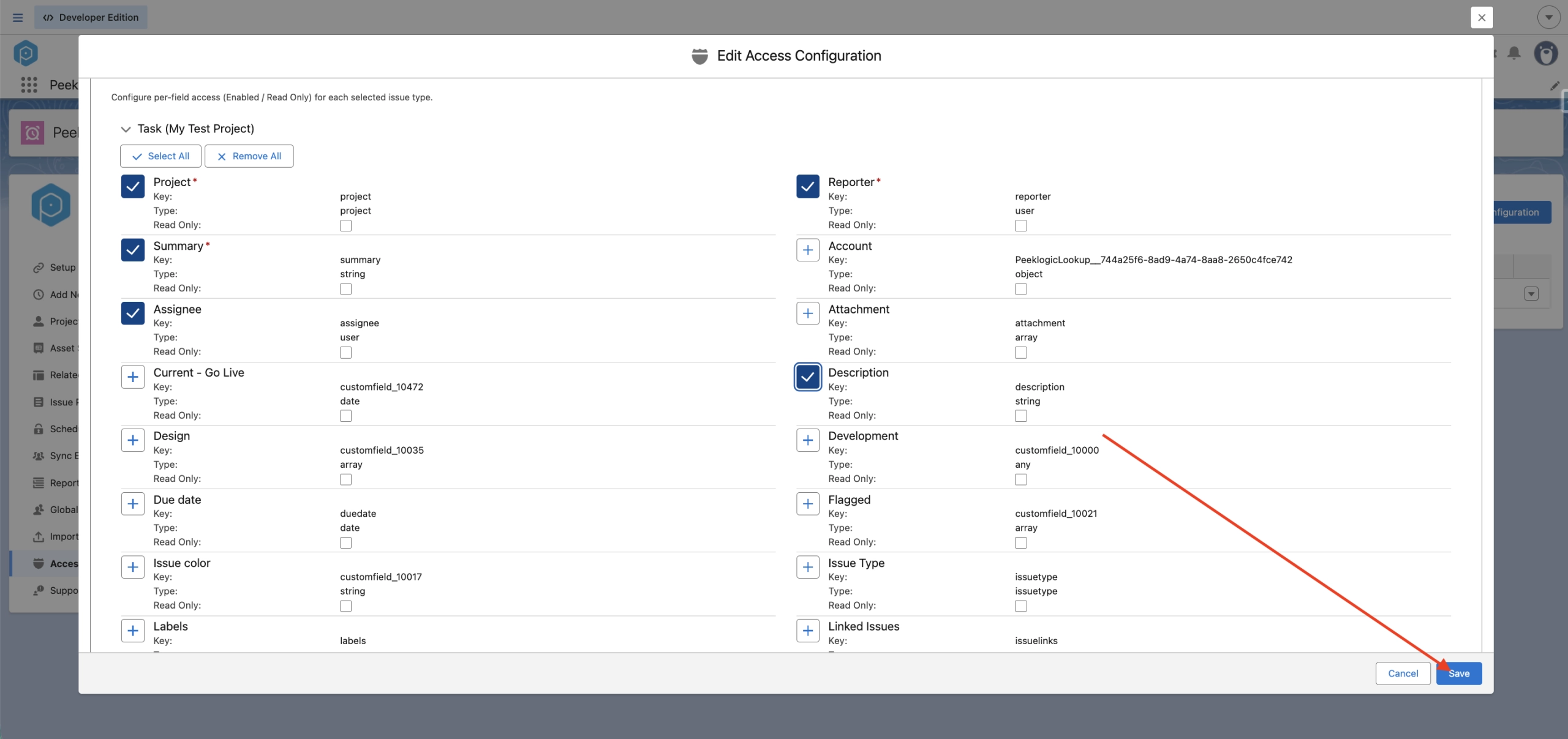
Click Save.
So, when a user with the specified Profile or Permission Set creates a record on the selected object, the Jira picker will display only the allowed projects and issue types. The issue creation form will also show only the configured fields, taking into account any read-only settings.
Access Configuration affects two key scenarios when working with Jira issues:
1. Create Jira Issue
When creating a new Jira issue:
- In the project picker, users will see only the Jira projects allowed by the rule.
- After selecting a project, the list of issue types is also filtered accordingly.
- The issue creation form displays only the fields enabled in the Fields Override tab, and any fields marked as read-only will be locked for editing.
2. Search / Link Jira Issue
When searching for or linking an existing Jira issue:
- The Jira issue search component also respects Access Configuration rules.
- Only the allowed Jira projects will appear in the project filter.
- Only the permitted issue types (per project) will be available in the issue type filter.
If Access Configuration is disabled, or if no rules are defined for a user, the system will fall back to the previous access logic (ensuring backward compatibility).
Important: Coexistence with Previous Settings
When Access Configuration is enabled and at least one rule applies to the user, the legacy restriction mechanism (such as Disabled_Record_Types_Configuration__c at the project level) is ignored. In this case, access is fully governed by the new configuration.
This behavior is intentional to avoid conflicts between multiple sources of truth. If no rules apply to the user, the previous logic will continue to function as before.
Rule Priority (when multiple rules apply)
- Projects and issue types are combined (union) from all rules that apply to the user.
- Field settings are determined by the rule with the lower Priority value (i.e., higher priority). Any other rules for the same field will be ignored.
Tip: It is recommended to assign lower Priority values (e.g., 10) to more specific rules, and higher values (e.g., 100) to more general ones. This ensures that specific exceptions always take precedence.



