
- Install Peeklogic Jira Connector from Atlassian Jira Marketplace to your Jira Cloud Instance by clicking the ‘Get it now’ button.
- Create Connected App on your Salesforce CRM Account.
- Navigate to Setup -> External Client App Settings -> Create New Connected App and configure it.

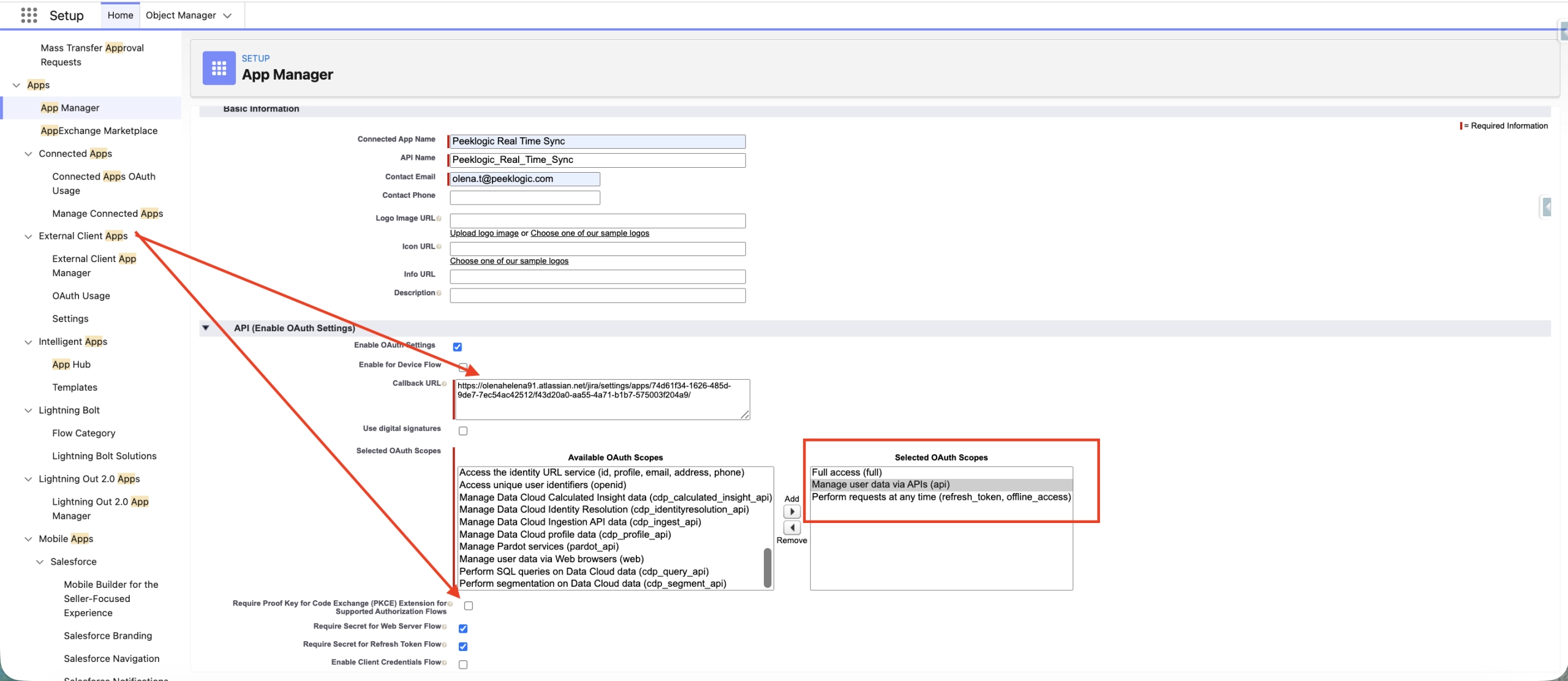
Find Peeklogic Salesforce and Jira Connector app in Apps in Jira.
Copy-Paste Callback URL from the link of your Jira App from your Atlassian environment.
Check if the Require Proof Key for Code Exchange (PKCE) Extension for Supported Authorization Flows is disabled.

To find Client_Id and Client_Secret click on the ‘Manage Consumer Details’ button of the Connected App to Jira that was created before.
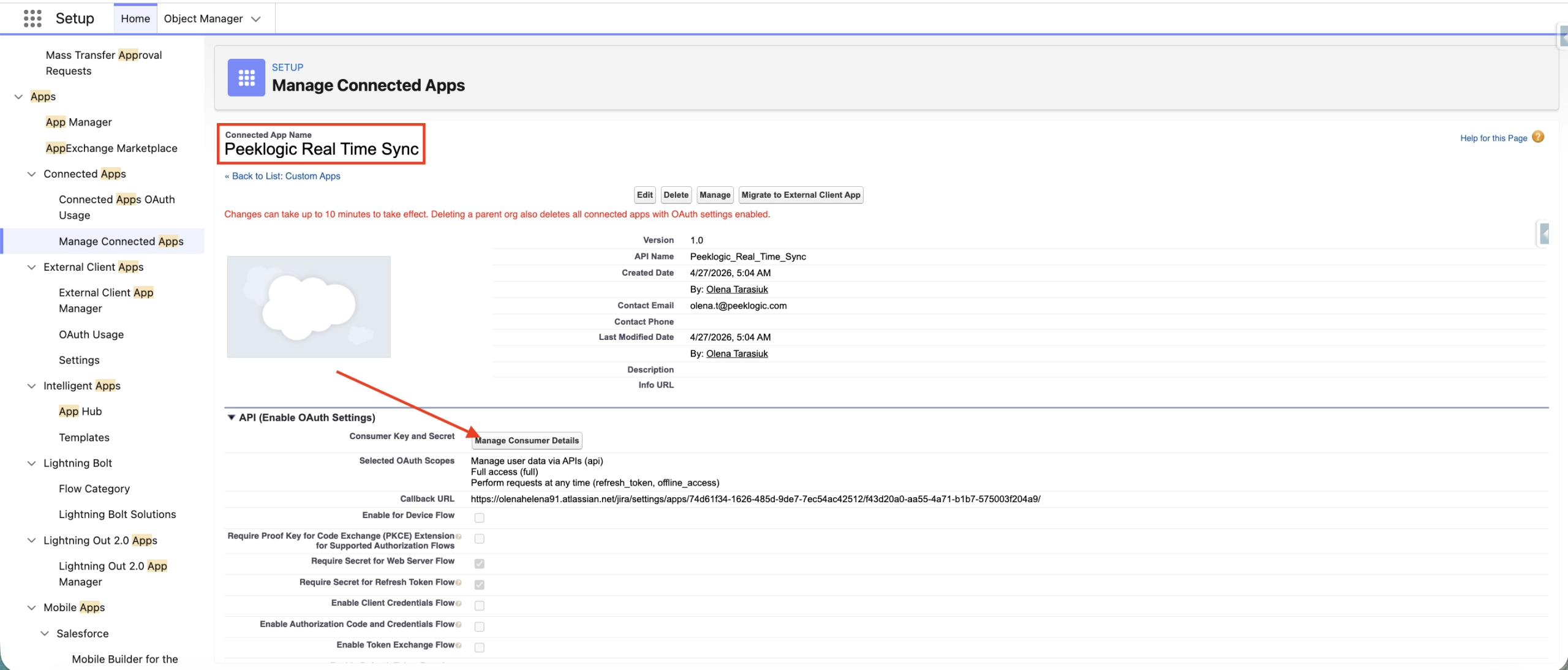
Notes: It usually takes about 10–20 minutes for the app to start working properly.
Fill in Client_Id and Client_Secret of Peeklogic Salesforce and Jira Connector App.

To connect your Atlassian Jira and Salesforce CRM instances click on the ‘Save and Login’ button.
Create External Client App if a Connected App is Unavailable
Create an External Client App on your Salesforce CRM Account.
Navigate to Setup -> External Client App Settings -> Create New External Client App and configure it.

Fill in the External Client App Name and Contact Email fields.

Select the “Enable OAuth” checkbox.
Enter the Jira URL in the Callback URL field.
From the available OAuth scopes select Full Access and Perform requests at any time (refresh_token, offline_access).

Uncheck all checkboxes in the Security section.

Click the Create button.
Navigate to the Settings tab, scroll down to OAuth Settings, and click on the Consumer Key and Consumer Secret.

Notes: It usually takes about 5–15 minutes for the app to start working properly.
Fill in the Client ID and Client Secret of the Peeklogic Salesforce and Jira Connector app on the Jira side.
Copy-Paste Callback URL from the link of your Peeklogic Salesforce and Jira App from your Atlassian environment.

- Documentation
- Jira
- Configuration Guide
- Real-Time synchronization
- Connection configurations
From Setup to Success — All in One Place

ServiceNow
Salesforce ServiceNow Setup
Create Named Credentials

Jira
Installation Guide
Configuration Guide
- Configuration Guide
- Setting up Peeklogic Jira Connector on Salesforce
Real-Time synchronization
- Real-Time synchronization
- Salesforce configurations
- Jira Server Webhook configurations
- Jira configurations
- How to Download Logs from Peeklogic Salesforce Connector
- Enable Real Time Sync for Atlassian Jira Service Desk Project Type
- Connection configurations
- Configuring Peeklogic Salesforce and Jira Connector Components per Jira Project
Working with ‘Related Jira Issue’ component
Peeklogic Jira Connector feature configurations
- Peeklogic Jira Connector feature configurations
- Access Configuration
- Salesforce Lookup field configuration
- Configure mapping for manual creation of Jira Service Request
Configure mapping for manual creation of Jira Issue
- Setup automatic update Jira Schema in Salesforce
Add and configure Jira Project and Jira Issue Type
- Select Named Credentials for Jira Synchronization
- Salesforce Notification
- Add and configure Jira Issue Type fields
- Move Jira Issue between Projects
- Jira Assets
- Email - to Case
- Configure Team feature
Comments Synchronization
Automation Process
- Automation Process
- Update Salesforce Record when Jira Issue is updated
- Update Salesforce Record Status automatically when Jira Issue Status is updated
- Update Jira Status to specific value
- Update Jira Issue Status automatically when Salesforce Record Status is updated
- Update Jira Issue automatically when Salesforce Record is updated
- How to create Service Request Automatically
- Search Jira Issue Screen Flow
- Notify Salesforce record Owner about created Jira Issue Comment
- Mapping fields directly in Flow
- Mapping fields directly in Flow
- Link Jira Issues Together
- Create Salesforce Record when Jira Issue is created
- Create Jira Issue automatically when Salesforce Record is created
- Create Automate Integration
- Associate automatically Jira Issue and Salesforce Records

Azure Devops

Netsuite
Installation
Configuration Guide
Peeklogic NetSuite Connector feature configurations

AI
AI Capabilities Matrix
Authentication Setup
Feature Configuration (AI Configurator)
- Install Peeklogic Jira Connector from Atlassian Jira Marketplace to your Jira Cloud Instance by clicking the ‘Get it now’ button.
- Create Connected App on your Salesforce CRM Account.
Ready to simplify your Salesforce integrations?



