


Jira Assets
- Configurations for connecting
- Configurations for synchronization and fields mapping
- Create, link and search Jira Assets
- Creating Flow for synchronization between Jira Asset and Salesforce object
- How to use Jira Asset Synchronization
Configurations for connecting
Create Named Credential to Jira.
Create one more Named Credential for using Jira Asset. Populate values:
- Label: any name
- URL: https://api.atlassian.com
- Identity Type: Named Principal
- Authentication Protocol: Password Authentication
- Username: Jira Username
- Password: API Token ( link how create API Token )
Save Named Credential.

Copy API Name of Named Credential.
Follow Custom Settings and click on ‘Manage’ near ‘Jira Admin Settings’.
Click the Edit button, paste API Name of Named Credential to ‘Assets Named Credentials’ field and save changes.

Configure Jira Asset in Salesforce:
- Follow Peeklogic Setup > Asset Settings > Add New Object Schema

- Choose the necessary Schema and save that.

Configurations for synchronization and fields mapping
Go to Object Schema.

Select one of a Type of Object.

In the tab ‘Attribute’, there are displayed all attributes of Schema Object.

In the ‘Automations’ tab, there are configurations for synchronization:
- Click the ‘New Automation’ button and follow the fields mapping between fields of the Salesforce object and attributes of the Shema Object in Jira.

- Click ‘Save’.

- Populate the ‘Save The Result in The Object Field’ field by the Salesforce field if you would like to record the identifier of Jira Asset Object in Salesforce after creating the Asset Object in Jira.
- Populate the ‘Asset Object External Field Name’ field by Jira field in order to save the ID of the Salesforce record. The value of this field is used for searching accorded an object in Jira for syncing.

- Click ‘+ Add’ button for fields mapping between the Salesforce object and Jira Asset object.
- From the drop-down list, choose attribute of Asset object and field of Salesforce object.


- For attributes such as Status and Select should map according values.

- For attributes that have ‘Object reference’ Type, depending on the Cardinality value – map to field with Type ‘Lookup’ or value can be Junction object.


- ‘Relationship Automation’ should be populated by automation according to which this object is synchronized in Jira.

- Save field mapping.

The required mapping must be created for all types of asset objects if the relationships between them are to be synchronized.
Create, link and search Jira Assets
You can create, link, and search for Jira assets using the Related Jira Assets component. To enable this functionality, make sure the component has been added to the page in Lightning App Builder beforehand.
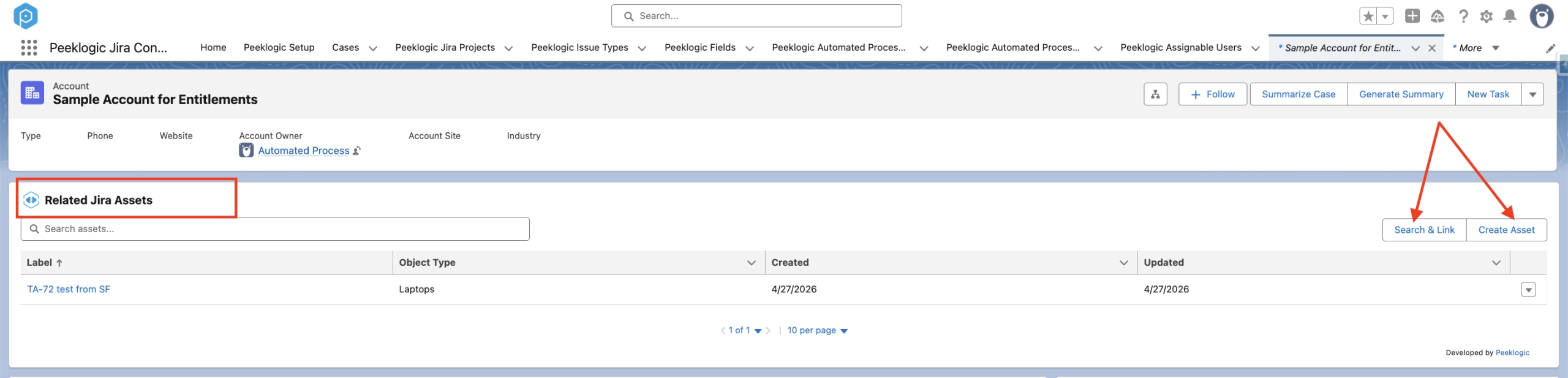
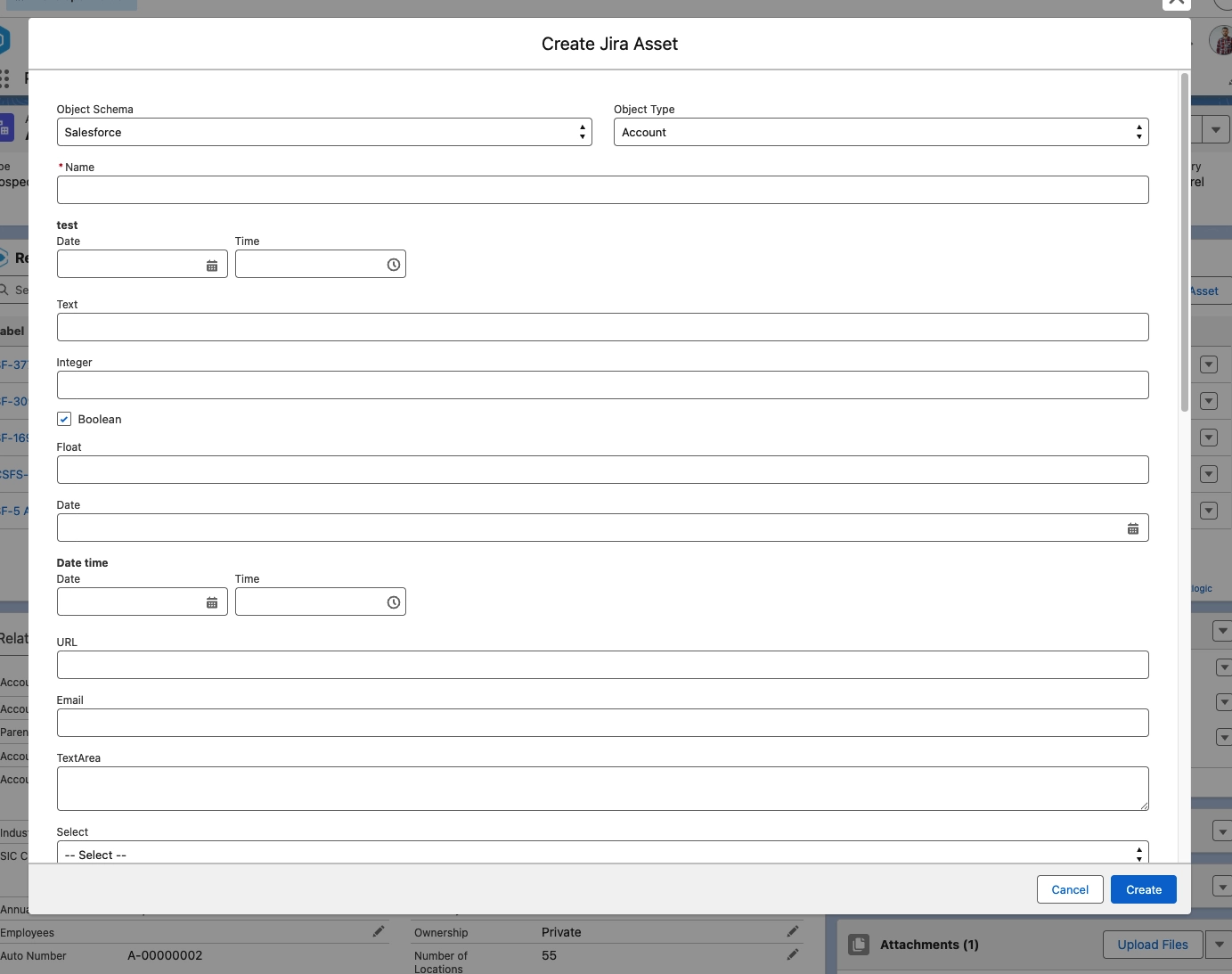
To create Jira assets, click the Create button and fill out fields.
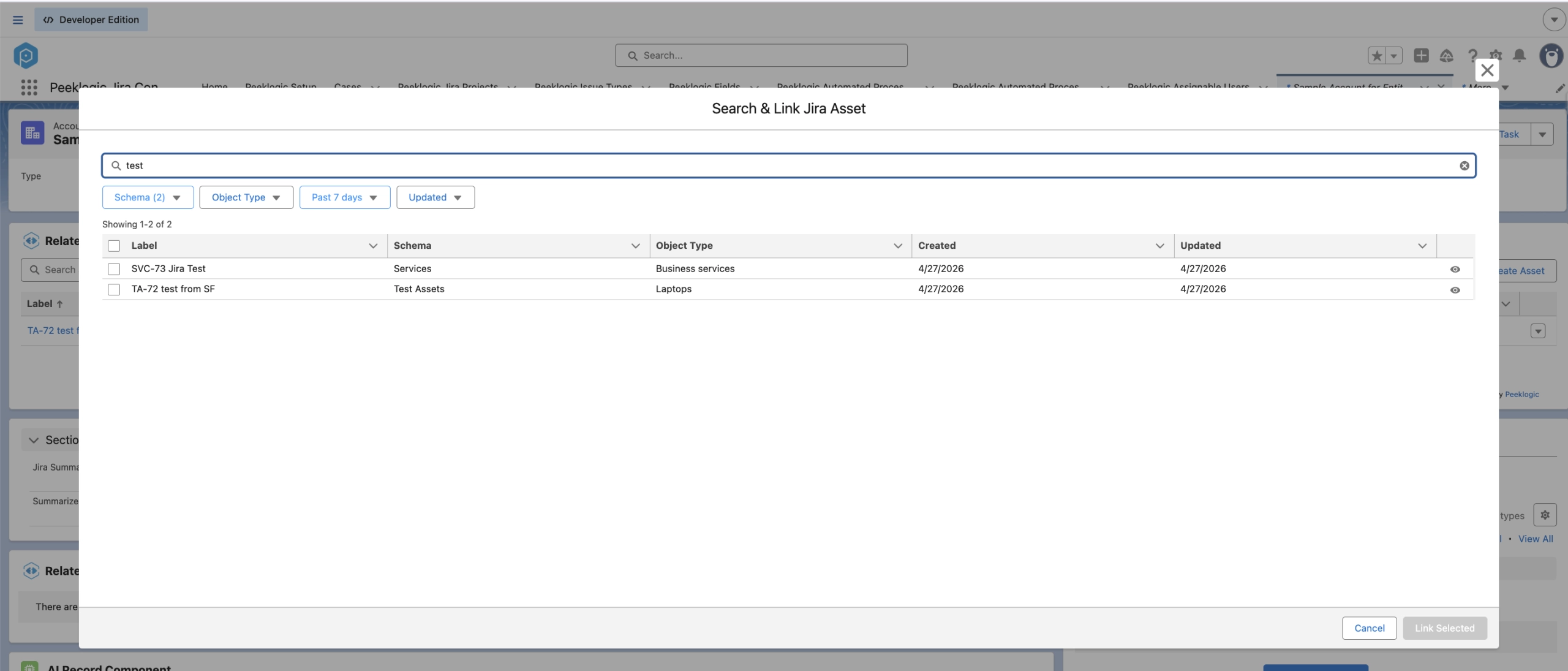
You can search for Jira assets using the following filters: Schema, Object Type, and Created and Updated. Configure the desired filters, and the system will return the matching assets.
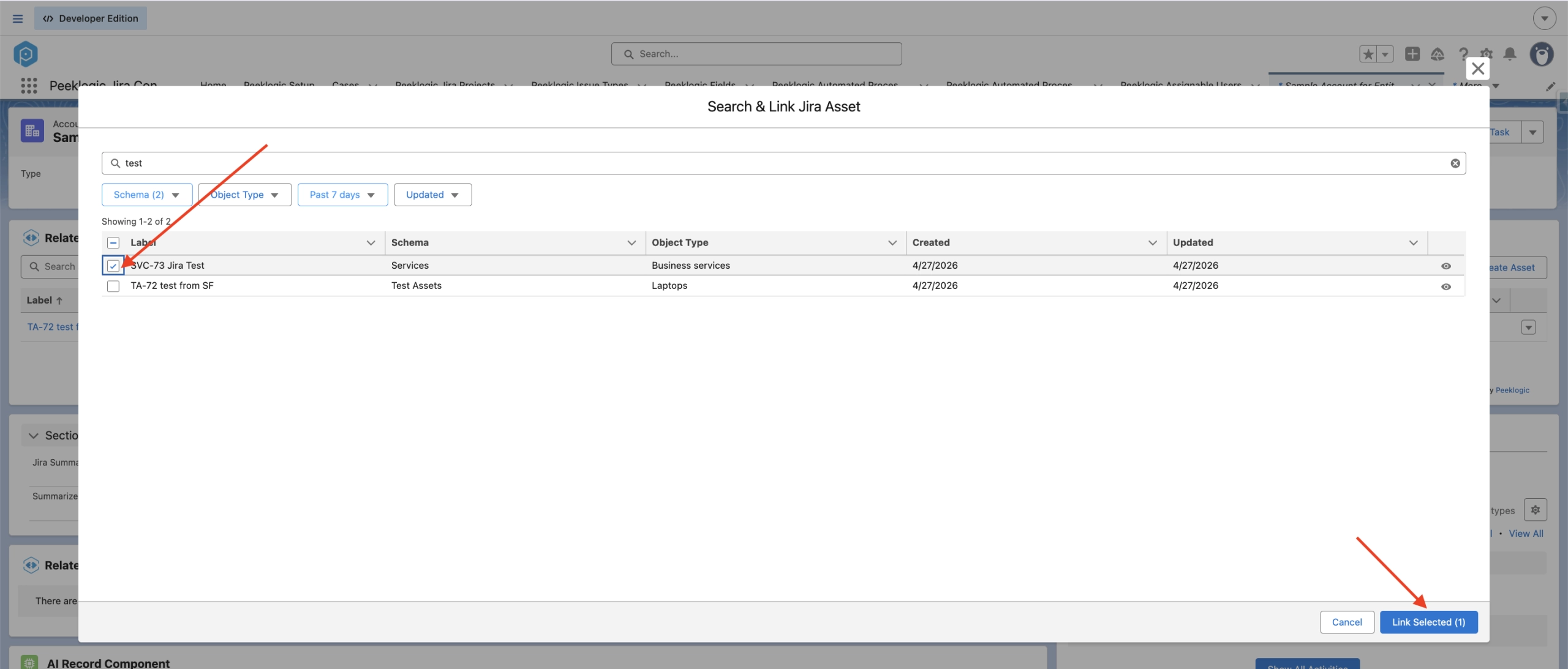
Select the checkbox next to the desired asset and click the Link Selected button. The Jira asset will then be linked to the Salesforce object and will appear in the component.
Creating Flow for synchronization between Jira Asset and Salesforce object
For each type of object that needs to be synchronized, it is needed to create a Record-Triggered Flow.

Choose a necessary object and set conditions for triggering.

Added the Action element, choose Peeklogic Asset Synchronization:
- automationId: ‘Automation Id’ from field mapping;
- sOjbjectId: ID of Salesforce record.

Save and Activate flow.

This apex action is executed asynchronously. In the case of API errors or errors in SF, the current user receives a notification box containing the error.

Notes
The synchronization logic is as follows:
First thing first, a search for the ID of the Jira Asset is performed in Salesforce. If there is an ID, the Jira object is updated.
If there is no ID in the Salesforce, a search is performed in Jira by the ‘Asset Object External Field Name’ field. This value is saved in the automation in the previous unit. If an object is found in Jira according to external Id, it will be updated and the key will be saved in Salesforce. If nothing is found – a new object will be created in Jira, and its key will be saved in Salesforce for further synchronization.
With regard to attributes with ‘Object reference’ Type, the logic of the ID search is similar. First, the ID in Salesforce is searched, if any, the attribute is filled with the appropriate value. If not, the search is carried out by the external ID in Jira (for this purpose, you selected the value Relationship Automation in the mapping in field mapping). If the appropriate object is found, the corresponding value will be written in the field. If nothing is found in Jira, this attribute of the object will not be synchronized.
How to use Jira Asset Synchronization
If your organization has a flow for automatically creating Jira Asset when a Salesforce record is created, just create a Salesforce record and Jira Asset will be created.
Field that was chosen in the ‘Save The Result in The Object Field’ field in Automation is populated by Jira Asset Object Id.

Automatically created Jira Asset has the populated fields that were mapped in Automation by value from Salesforce.

Map in Automation any field to Id of Salesforce record and this field will be populated in Jira Asset object by Salesforce record Id.

Besides, a Salesforce record can be displayed in Jira Asset as a button that redirects you to Salesforce.
Just create a field with type URL in Jira Asset. Populate this field by URL of Salesforce record, click on the ‘Connect your Salesforce account’ button and login to Salesforce.

The URL field has a button with the name of the Salesforce object and name of current Salesforce record. Press the button and you will be redirected to the current Salesforce record.


If your organization has a flow for automatically updating Jira Asset when a Salesforce record is updated, just update the fields of the Salesforce record that were mapped in Automation and these fields will be updated directly in Jira Asset.


Attributes that have ‘Object reference’ Type and were mapped to fields with Type ‘Lookup’ or value can be Junction objects in Automation will be updated too.



